






Hyper-V Data Recovery Services

YOUR FILES. BACK.
GUARANTEED.
PITS Data Recovery specializes in Hyper-V recovery, handling VM failures, data corruption, and accidental deletions. Using advanced techniques, the team ensures secure, efficient data restoration, maintaining business continuity.
99% Success Rate
Quick Estimate
No Data, No Fee
Open laptop displaying the Windows 11 home screen with a bright blue abstract background.

Certified. Secure. Trusted Nationwide.

Complete Hyper-V Data Recovery Services

Microsoft’s Hyper-V technology enables businesses to create and manage multiple virtual machines on a single Windows server, maximizing efficiency and hardware usage. Despite its capabilities, a Hyper-V setup is still vulnerable to issues that can impact data integrity and access, from virtual machine failures to host server errors. At PITS Data Recovery, we specialize in Hyper-V recovery solutions designed to restore your data securely and efficiently, ensuring minimal disruption to your operations.
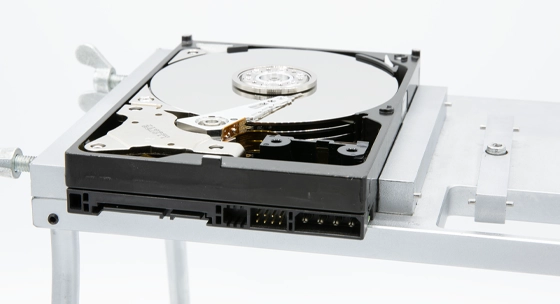
Open hard drive on a mounting platform with exposed platters.

Our Hyper-V recovery process is tailored to meet the challenges unique to virtualized environments. From physical drive analysis to logical data recovery within virtual disks, our approach addresses the two key stages of Hyper-V recovery:

Don’t let a Hyper-V failure disrupt your business continuity. Contact PITS Data Recovery today at 888.611.0737 or Request Help online to begin your recovery process and restore your virtualized environment swiftly.

Common Hyper-V Issues and Signs of Data Loss

Hyper-V systems are susceptible to a range of data loss issues, from physical server problems to virtual machine corruption. Identifying these signs early can help minimize data loss and system downtime. Here are the most common signs of data integrity issues in Hyper-V environments.

Unexpected VM Shutdowns or Restarts

Instabilities within the system can cause VMs to shut down or restart unexpectedly, often signaling underlying software or hardware issues.

VM Boot Failures

Inability to start a VM may point to data corruption or configuration errors

Degraded System Performance

Sluggish performance or latency can result from resource contention or failing hardware.

Error Messages During Migration

Problems during VM migration often indicate data consistency or network issues.

Frequent Host BSOD Errors

Blue Screen of Death (BSOD) errors can reflect severe system-level faults.

Data Corruption in VMs

File corruption within VMs may signal storage subsystem failures, requiring immediate attention.

If you observe any of these issues, it’s essential to act quickly. Contact PITS Data Recovery to prevent further data damage and initiate a secure recovery process. Early intervention significantly improves recovery outcomes.

Hyper-V Disaster Recovery Recommendations

A proactive approach to Hyper-V disaster recovery can prevent data loss escalation and reduce recovery time. To improve recovery success, avoid common mistakes when dealing with Hyper-V failures. PITS Data Recovery provides expert disaster recovery guidance for Hyper-V environments, ensuring critical data is handled correctly from the start.

When dealing with a Hyper-V system failure, follow these crucial steps:

  • Power Off the System: Turning off your Hyper-V system immediately helps preserve data integrity.
  • Avoid DIY Repair Attempts: Avoid running any software or attempting to repair the system on your own, as this can worsen data loss.
  • Do Not Rebuild or Reinitialize Arrays: Attempting to rebuild RAID arrays or other storage configurations without proper expertise can cause permanent data loss.

Our team offers risk-free evaluations and provides shipping options to expedite your recovery process. When your Hyper-V system reaches our lab, we conduct a comprehensive analysis and provide a clear recovery quote tailored to your timeline and budget.

microsoft office hyper-v repair

Protect your Hyper-V data by trusting experienced professionals. Contact us at 888.611.0737 or Request Help to secure a no-obligation consultation and initiate a safe, effective recovery process.

Professional Data Recovery

Need Data Recovery? Start Here.

From evaluation to recovery, our process is secure, transparent, and built for maximum success.

99% Success Rate

100% Secure Process

24/7 Support

Start Recovery Process

All fields are required

"*" indicates required fields

This field is hidden when viewing the form

Our Data Recovery Process

1

Free Consultation

We begin with a free consultation to understand your data loss situation and explain how the recovery process works.
2

Full Diagnostics

Drop off your device locally or ship it using our prepaid, insured label. Our engineers perform a full diagnostic to identify the issue and define the recovery approach.
3

Review & Decide

You receive a fixed-price quote based on recovery complexity and turnaround option. Approve the recovery or have your device returned with no obligation.
4

Secure Delivery

Recovered data is delivered via encrypted media or secure cloud transfer. Upon confirmation of delivery, all recovered data is permanently erased from our systems.

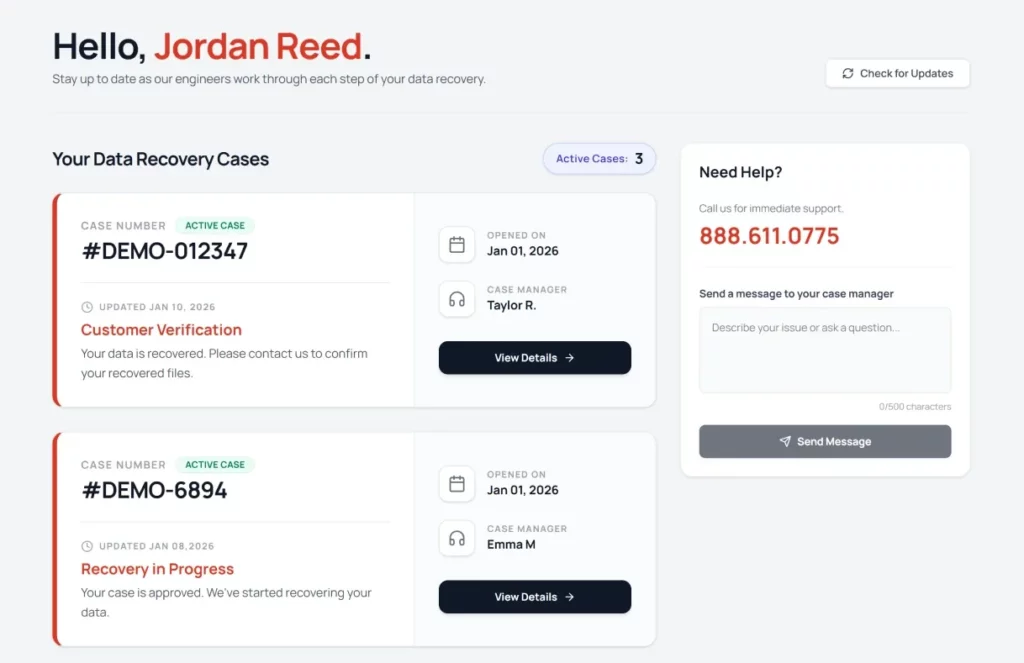
Dedicated Data Recovery Dashboard

Stay informed and in control with real-time updates throughout the entire recovery process.

Case Overview

View all recovery cases and their current status at a glance.

Case Progress Tracking

Follow recovery progress as your case moves through each stage.

Direct Case Communication

Contact your assigned case manager for updates or questions.

Our Blogs

Explore expert insights, guides, and tips on keeping your data safe.

5 min read

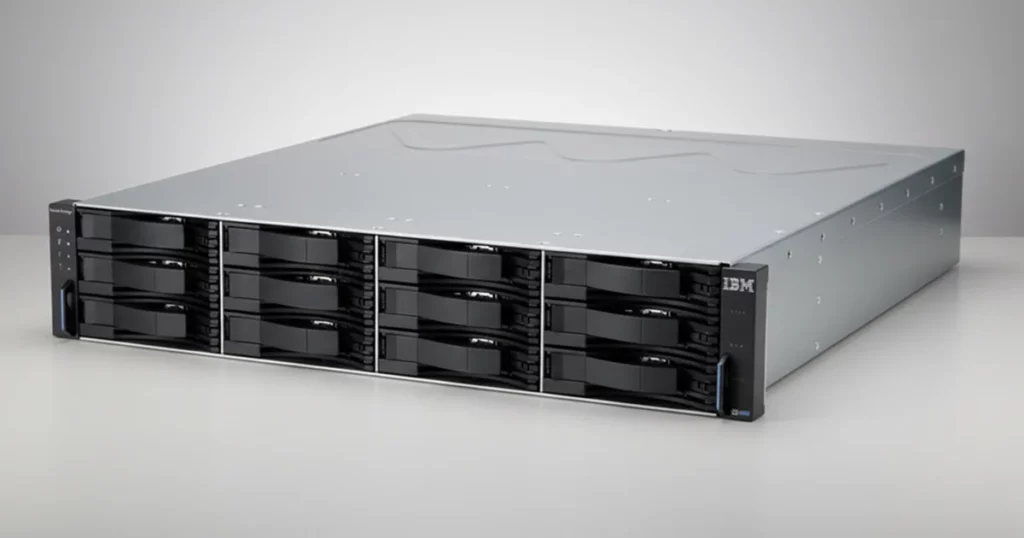
Successful IBM Storwize Data Recovery: A Case Study

Read More
5 min read

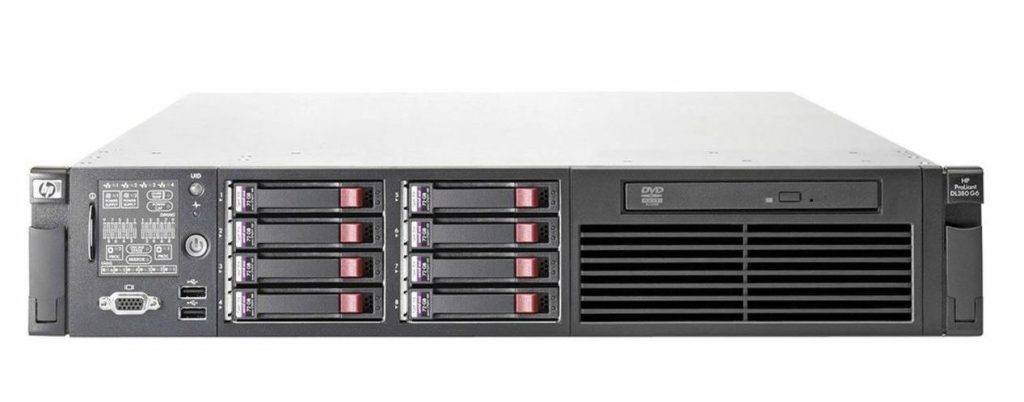
HP ProLiant ML380 G6 RAID 5 Recovery After Dual Drive Failure

Read More
4 min read

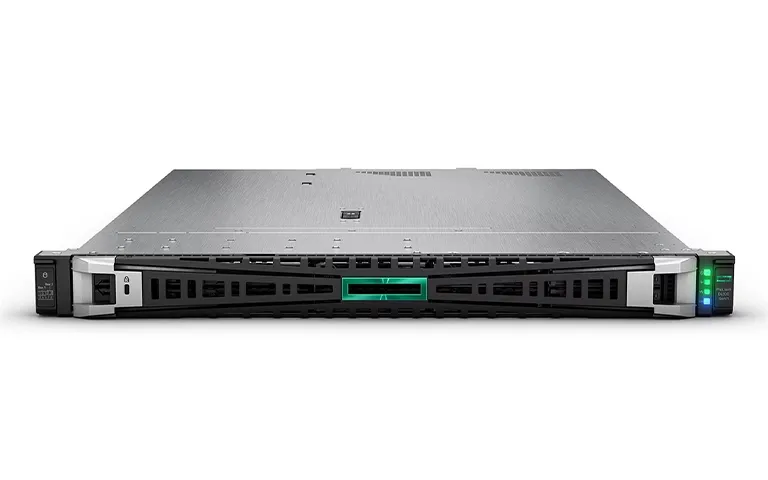
HP ProLiant File System Recovery

Read More

Verify Your Data

Once we have successfully recovered your data, we will arrange a secure remote session for you.

Confirm The Recovery

Review your restored files to ensure completeness.

Convenient Verification

Check your data from the comfort of your own home or office.

Privacy Assured

End-to-end encryption protects your information.

Client Success Stories

100,000+ drives recovered

Customer Reviews

4.9
Based on 6900+ reviews
Reviewer Avatar
Alfie Alvarado
Google
I needed Data Retrieval help with an SD card that someone had deleted my Video files from. I called several different places in NYC and decided to go with PITS Data Recovery. There was something about the level of professionalism that came across on that first initial call that made me decide to go to them with my SD card problem. I highly recommend Pits Global Data for data recovery service, or other help with any one of you digital devices. The staff at Pits Global are the nicest professionals I’ve ever had the pleasure of working with. They went over and above to help me with my SD card problem. I so appreciated their care, concern, and dedication in trying to retrieve the deleted files. The individual attention they provided me was so assuring, I knew I’d come to the right place. The costs and timetable were clearly explained, and they actually did the job ahead of time. They worked with me step by step so that I was able to look at the files remotely in the comfort of my home too. All in all, Pits Global is a well organized Data Lab with very professional people who were a pleasure to work with.
Read more
Reviewer Avatar
Yuchen He
Google
I accidentally formatted my sd cards, I went to the PITS to ask for a recovery. They knew I was a student and were very considerate of me. They restored it quickly and gave me a discount. The customer service were very nice, and I deeply appreciate their professionalism and considerate service. The staff are friendly, always patient and polite, and can quickly understand my needs and provide effective solutions, which greatly shortens the problem-solving time. Thanks for letting me get all my photos back in a short time!
Read more
Reviewer Avatar
Monica Doucet
Google
I am thrilled that I discovered PITS Global to assist me in recovering my data from a damaged SSD. It had been dropped in water and was no longer functioning. But PITS was incredibly professional and guided me through the process step by step. To ensure that I retrieved everything I needed, they even scheduled a verification session where I could connect to their server, view my files, and then proceed with the payment. They are not only the best data recovery service in Houston but also, in my opinion, the best in the entire country
Read more

Frequently Asked Questions

If you delete Hyper-V from your system, all virtual machines (VMs) that depend on it will stop working. This means any applications or services running on those VMs will be inaccessible until another virtualization solution is in place. Additionally, management tools like Hyper-V Manager and related PowerShell modules will no longer function. System resources previously allocated to Hyper-V will be freed up, which may improve performance for other applications, but removing Hyper-V can cause significant disruptions in environments relying on virtualized infrastructure.
Hyper-V Manager is a management tool for system administrators to handle virtualization on Windows systems. It allows users to create, configure, and manage VMs, adjust hardware settings, and set up virtual networks. Hyper-V Manager also supports tasks like starting, stopping, and monitoring VM performance, as well as creating snapshots for recovery. This tool simplifies managing virtualized environments, making it easier to oversee and optimize virtual machines.
To check Hyper-V services, open the “Services” management console by typing services.msc in Windows. Look for services such as “Hyper-V Virtual Machine Management” to see their status. Alternatively, you can use PowerShell by entering the command Get-Service -Name vmms to check if the Hyper-V Virtual Machine Management service is running. Ensuring these services are active is essential to maintaining a functioning virtualization environment.
Disabling Hyper-V services is safe if you are not using virtual machines on your system. However, for systems that rely on VMs, disabling Hyper-V will shut down all active VMs, potentially interrupting applications and services running on them. For users who don’t need virtualization, disabling Hyper-V can free up system resources. Before disabling, be sure to back up any critical data stored on VMs to avoid data loss.
Request Help

Professional Data Recovery

We’re Here to Help

Our experienced team is committed to helping you recover your critical data. No matter the situation, we work diligently to ensure the best possible outcome. Take action now and let us restore what’s important to you.

Start Recovery Process

All fields are required

"*" indicates required fields

This field is hidden when viewing the form