

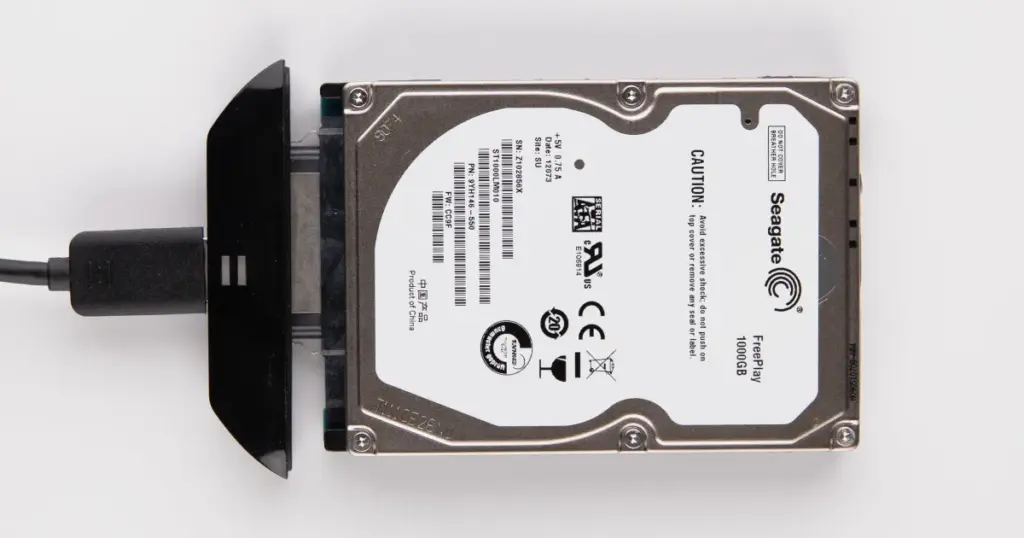
A Windows laptop may still detect an external hard drive while blocking access to every file on it. One common warning sign is a drive that changes from NTFS to RAW and displays the message: “You need to format the disk before you can use it.”
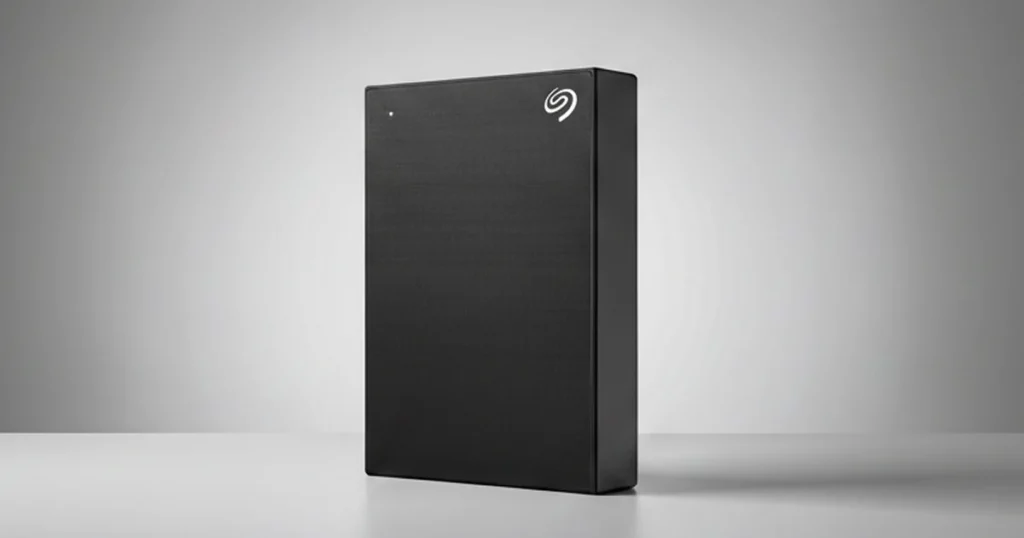
This case study covers a 2TB Seagate external hard drive that powered on, appeared in Disk Management, but became inaccessible due to file system corruption and unstable sectors.
It shows why formatting, repair tools, and repeated access attempts can turn a recoverable case into a much harder recovery.
Customer Situation
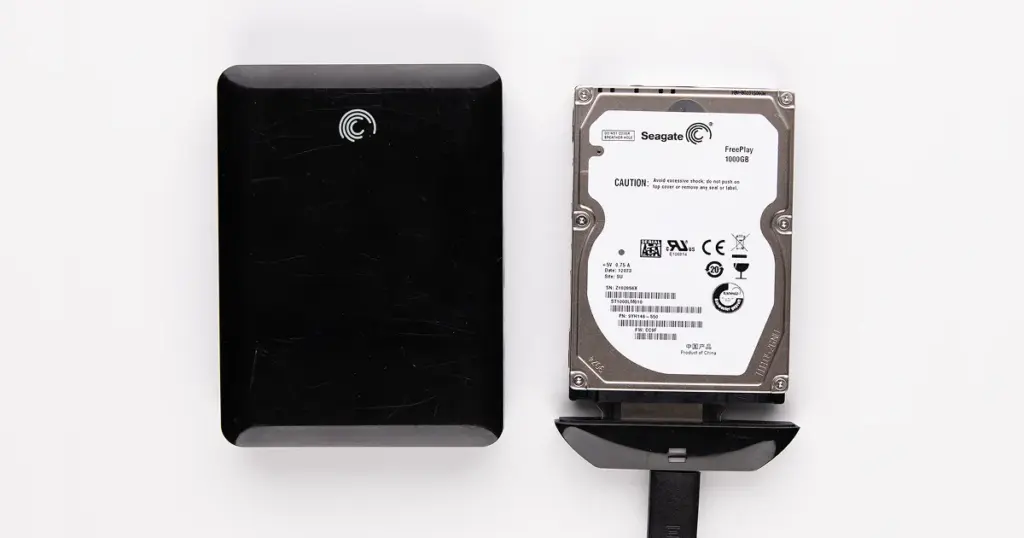
The customer submitted a 2TB Seagate external hard drive after it suddenly stopped opening on a Windows laptop.
The drive still powered on and appeared in Disk Management, but the file system showed as RAW instead of NTFS. When the customer tried to access it, Windows prompted them to format the disk.
The drive contained business documents, accounting files, project folders, and family photos. No recent backup was available, which created both operational and personal risk.
The customer needed the drive evaluated before the data became harder to recover. For another Seagate recovery scenario, read more about this Seagate FreePlay recovery case.
Don't Let Data Loss Ruin Your Business
Minimize business disruption. We retrieve lost data fast, so you can focus on what matters.
Why the Drive Showed RAW Instead of NTFS
Diagnostics found NTFS file system corruption and unstable sectors near the beginning of the drive, where critical metadata is stored. The drive was not mechanically dead, but normal access was risky because Windows could no longer read the file system correctly.
Key indicators included:
- RAW file system in Windows
- Format prompt when opening the drive
- Inaccessible files and folders
- Unstable sectors near metadata areas
The drive was not empty. Windows simply could not interpret the damaged NTFS structure. For another example of complex Seagate media recovery, learn more about this Seagate BlackArmor PS110 data recovery case.
How PITS Approached the Recovery
RAW Condition and Sector Instability Confirmed
PITS engineers confirmed that the drive showed RAW because of NTFS corruption and unstable sectors near critical metadata areas. The diagnosis showed that the drive needed controlled imaging before any file system work.
Sector-by-Sector Image Created
The team created a sector-by-sector image using professional imaging equipment. This secured a working copy of the drive and reduced the need to keep reading directly from the original media.
Unstable Areas Read With Controlled Retries
Problem sectors were handled with controlled retries to avoid unnecessary stress. This approach helped capture as much readable data as possible while protecting the drive from aggressive access attempts.
Partition and NTFS Metadata Rebuilt
After the image was secured, engineers analyzed the damaged partition structure and rebuilt the NTFS metadata. This step was essential for turning raw storage data back into usable files and folders.
Folder Structure and Priority Files Verified
PITS reconstructed the folder hierarchy and verified the customer’s priority files, including business documents, accounting files, project folders, and family photos.

Why DIY Recovery Was Risky
This case involved unstable sectors near critical NTFS metadata. That made uncontrolled software scans and repair utilities risky. DIY recovery was not the right first move because:
- The drive had unstable media areas
- Critical partition data was affected
- Repair tools could overwrite damaged metadata
- Repeated scans could stress weak sectors
- A clean image was needed before reconstruction
For another case showing why controlled lab recovery matters, read more about this SanDisk Ultra Plus MicroSD card data recovery.
Industry-Leading 99% Success Rate
No hidden fees. No surprises. Just expert data recovery you can trust. We handle everything from simple file loss to extreme data recovery cases. If we can’t recover your data, no one can.
1.82TB Recovered From a 2TB External Drive
PITS Data Recovery recovered 1.82TB out of 2TB, equal to approximately 91% of the customer’s data. Most original folders and file names were preserved.
The unrecovered portion was limited to files located in heavily degraded sectors and several corrupted temporary system files.
The customer regained access to the data that mattered most, including business documents, accounting files, project folders, and family photos.
What Not to Do When Windows Asks to Format the Drive
A format prompt is not a recovery instruction. It is a warning that Windows cannot read the current file system.
Avoid these actions:
- Do not format the drive
- Do not run CHKDSK
- Do not use partition repair tools
- Do not initialize the drive
- Do not save new files to it
- Do not keep reconnecting it to test access
These actions can overwrite metadata, increase read stress, or reduce the chance of preserving the original folder structure.

DIY Recovery
Risks permanent data loss
Let the Specialists Handle It
DIY attempts often result in permanent data loss. Our certified recovery specialists use advanced tools in controlled environments for the highest success rate.
24/7 Emergency Service
Final Takeaway: Do Not Format a RAW Drive
A RAW external hard drive may still contain recoverable data. The format prompt means Windows cannot read the file system, not that the files are gone.
If your drive shows RAW or asks to be formatted, stop using it. Do not run CHKDSK, initialize the drive, or scan it repeatedly.
Contact PITS Data Recovery for a professional evaluation before unstable sectors or overwritten metadata reduce recovery options.
Frequently Asked Questions
Can files be recovered from a RAW external hard drive?
Should I run CHKDSK on a RAW external hard drive?
Why does Windows say I need to format the disk?
Can recovery software fix a RAW drive with unstable sectors?
Get a Free Consultation.
Our recovery experts are ready to assess your device and guide you through the safest path to recovery. Fill out the form to get started.
"*" indicates required fields