

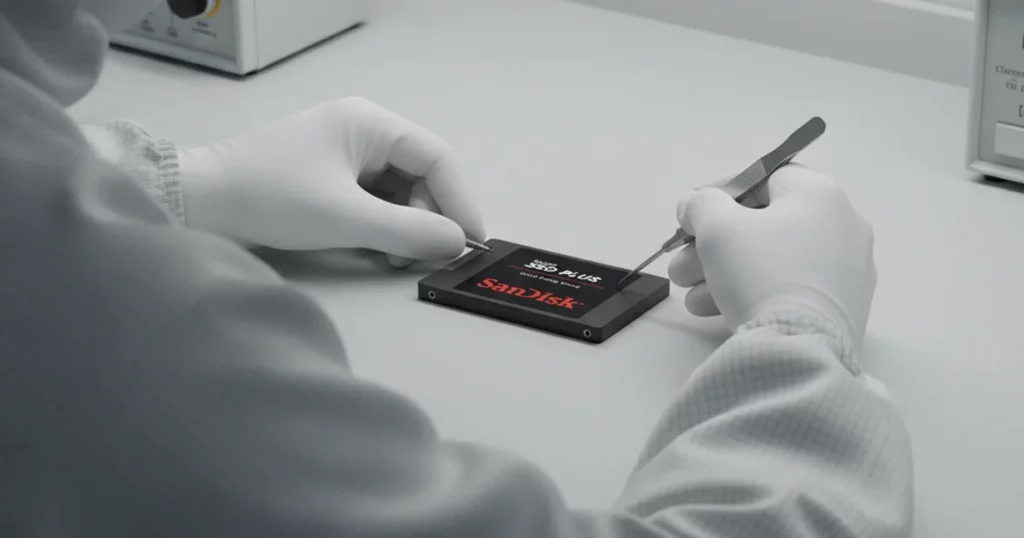
The user was running a SanDisk SSD Plus as the operating system drive when performance started degrading. Transfers slowed down, file access began freezing, and missing data became the primary concern.
After basic checks showed no obvious physical damage and firmware looked normal, the user discovered that some previously saved files had disappeared and were later found to be overwritten by newer data.
We performed an evaluation, confirmed the failure severity, and moved into a controlled recovery workflow.
Quick context
Device: SanDisk SSD Plus (OS drive)
Scenario: slow transfers, freezing, missing files, overwrite confirmed
Outcome: data recovered and verified with the user
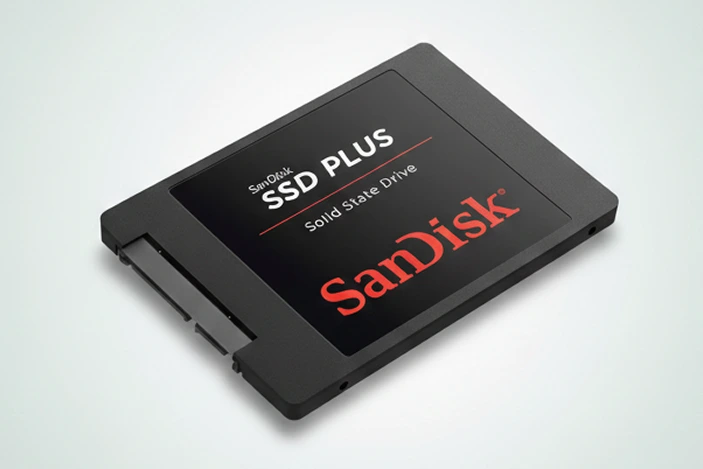
What Failed and What Was at Stake
The SSD did not fail in one moment. It showed gradual instability, then escalated into missing and overwritten data.
What the user noticed
Slow transfer speeds and periodic freezing
Some files taking too long to open or not opening at all
Previously saved files missing from the drive
What made this case risky
The SSD was the operating system drive, so background activity can overwrite data without the user realizing it.
Once data is overwritten, recovery options narrow quickly.

DIY Recovery
Risks permanent data loss
Let the Specialists Handle It
DIY attempts often result in permanent data loss. Our certified recovery specialists use advanced tools in controlled environments for the highest success rate.

24/7 Emergency Service
Physical Failure Confirmation
| Overwrite Scenario | Practical Impact on Recovery |
|---|---|
| Files deleted but not overwritten | Higher probability of restoring original content with intact structure |
| Files partially overwritten | Recoverable data may be fragmented, incomplete, or corrupted |
| Files fully overwritten by new data | Original content is effectively unrecoverable under standard forensic methods |
| OS drive kept running after loss | Continuous background writes materially degrade recovery success rates |
If your SanDisk SSD is becoming unstable or disappearing entirely, learn more about SanDisk SSD not showing up issues here: SanDisk SSD not showing up.
OS Drive Context: Why This Case Is High Risk
Because the SanDisk SSD Plus was used as the operating system drive, the risk profile was immediately higher. Even when the user is not actively saving files, the system continues generating background writes such as logs, updates, caching, and indexing.
That matters because overwrite is not always a one-time event. As the drive slows down and starts freezing, normal OS activity can keep writing into the same storage space where older data used to live.
This is why cases like this need fast, controlled action rather than extended testing and repeated reboot cycles.
Recovery Process: Controlled Imaging and Reconstruction
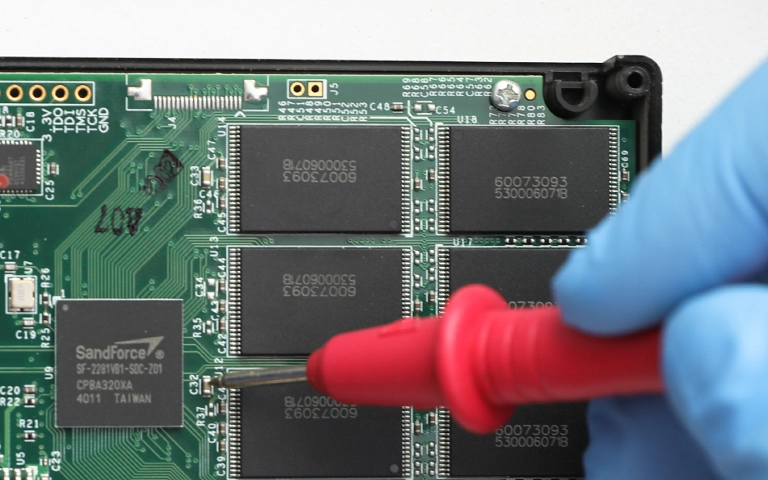
We treated this as an OS drive recovery with overwrite exposure. The workflow prioritized preservation first, then reconstruction.
Step 1: Stabilize intake
We minimized activity on the SSD to reduce additional writes and prevent further file changes.
Step 2: Create a controlled image
We captured a sector-level copy so recovery work could proceed without stressing the original media.
Step 3: Assess overwrite footprint
We identified where missing data had likely been replaced by newer writes and mapped what was still recoverable.
Step 4: Reconstruct recoverable content
We rebuilt accessible files and folders from remaining intact areas, handling damaged items case-by-case.
Step 5: Validate and organize output
We checked file usability and delivered the recovered data in a structured, review-ready format.
When an SSD is still in use as the OS drive, even routine activity can generate new writes. Reboots, firmware checks, and repeated copy attempts can overwrite more data and reduce recovery success.
Your Data Security Is Our Priority
Data privacy isn’t optional. It’s our commitment. Our secure recovery process ensures your sensitive information stays protected from start to finish.
HIPAA Compliant
GDPR Compliant
Secure Facility
NDA Available
Trust in certified security. Start your recovery today! Call Now: 888.611.0737
Recovery Result and File Verification
We successfully recovered data from the SanDisk SSD Plus and prepared the output for customer review.
After recovery, we scheduled a verification session so the user could check file availability and confirm whether anything critical was missing.
The user confirmed their important files were present, and we completed the case with a structured delivery of the recovered data.
Hear It From Our Clients
Don't Let Data Loss Ruin Your Business
Minimize business disruption. We retrieve lost data fast, so you can focus on what matters.
SanDisk SSD Plus Data Corruption: Action Plan
If you suspect files were overwritten, speed and discipline matter more than troubleshooting.
Do this
- Power down the computer and stop using the SSD.
- If it is an external enclosure, disconnect it safely and keep it off.
- Note what went missing, when it happened, and what new data was written afterward.
Do not do this
Do not reinstall the OS, run updates, or keep rebooting.
Do not run disk repair tools or “optimize” utilities.
Do not copy new files to the SSD to “test” it.

Contact Us for SanDisk SSD Plus Data Recovery
If your SanDisk SSD Plus is slowing down, freezing, or showing missing files after overwriting, stop using it. The longer an OS drive keeps running, the smaller the recovery window becomes.
Share the SSD model, how it was used, when the loss occurred, and what new data was written afterward. We will evaluate the drive, set expectations based on overwrite severity, and run a controlled recovery workflow designed for SSD behavior.
If you want to understand our SanDisk-specific capabilities, explore our SanDisk SSD data recovery service here: SanDisk SSD data recovery.
Get a Free Consultation.
Our recovery experts are ready to assess your device and guide you through the safest path to recovery. Fill out the form to get started.
"*" indicates required fields